
Have you ever wondered if your home network is as secure as your front door? Nowadays, online threats are on the rise, and using a VPN on each device is like adding an extra lock to keep strangers out. A VPN scrambles your data so that only you can read it, hiding your digital address as well.
This guide shows you how to protect your laptop, phone, smart TV, and more. It explains easy, step-by-step ideas to keep your online world private and safe. Ready to boost your home security with simple steps? Let’s dive in and make your digital life more secure every time you go online.
Step-by-Step VPN Configuration Across Devices for Home Security
Setting up a VPN on each device is like adding an extra lock on every door in your home. It works by scrambling your data and hiding your IP address, so you can explore the web without regional hassles. Imagine you’re swapping out every old key for a brand new one that offers better protection.
Here’s how to get started:
- Choose a VPN provider and sign up for a subscription.
- Download and install the VPN app on your device.
- Open the app, log in, and pick a server.
- Turn on features like the kill switch and DNS-leak protection.
- Check that your connection is secure by verifying the IP change.
Think about it like this: once you connect, your laptop’s IP shifts, almost like changing your home address for the internet. While you might not need this on every gadget, it’s a smart move when handling sensitive info. For devices like smart TVs that don’t have a built-in VPN option, setting up a router-based VPN keeps your streaming safe and your location private.
Work through each device, whether it’s Windows, macOS, iOS, Android, Linux, or even a Smart TV. Make sure the VPN app is installed and set up correctly. Running a quick DNS-leak test online helps confirm that your true location remains hidden. And if something feels off with your connection, double-check that the kill switch is turned on. For those who need extra help, a detailed guide is available at https://heighline.com?p=93.
Selecting the Best VPN Provider for Multi-Device Home Security

When you’re looking for a VPN that keeps all your home devices safe, start by checking a few simple things. First, think about how many gadgets you want to protect at the same time. This means looking at how many devices can connect to the VPN simultaneously. Next, check the speed. Faster speeds help you stream and download without any annoying lags. Security is important, too. Look for features like strong encryption (a way to scramble your data so only you can read it), no-logs rules, and tools that block cyber threats. And don’t forget about platform support, you want a service that works well on Windows, macOS, iOS, Android, and other smart devices. In short, choose a VPN that acts like a secure, private bridge for your online life at home.
| Provider | Max Connections | Money-Back Guarantee | Key Feature |
|---|---|---|---|
| NordVPN | 6 | 30 days | Fastest servers |
| Surfshark | Unlimited | 30 days | Budget-friendly |
| ExpressVPN | 8 | 30 days | Smart DNS |
| Proton VPN | 10 | 30 days | Strong encryption |
| Mullvad | Unlimited | N/A | No-logs policy |
| IPVanish | Unlimited | 30 days | 2,400+ servers |
| CyberGhost | 7 | 14/45 days | Streaming optimized |
Many VPN providers offer free trial periods, which give you a chance to test them out on your own devices. During these trial days, see how fast the connection is, how stable it remains, and whether setting it up on all your gadgets is a breeze. This hands-on test can help you decide if the VPN truly meets your home security needs, making sure that your digital world stays safe and private.
Configuring VPN Apps on Windows, macOS, iOS, and Android Devices
When you set up your VPN on a computer, it’s pretty straightforward. Start by downloading the installer file (.exe for Windows or .dmg for macOS). Run the installer and follow the on-screen steps to grant the needed permissions. Once you’re done, open the app and head to the settings menu. Here, you can turn on the kill switch. This feature stops all internet traffic if the VPN disconnects unexpectedly. Also, check out the split tunneling option. It lets you decide which apps use the VPN, imagine your banking app using a secure connection while your email sticks with your regular network.
On your iPhone or iPad, simply visit the App Store to download your VPN app. After installing, open your Settings and allow the VPN the required permissions. iOS even offers an auto-join option for trusted networks, so your device connects automatically when needed. It’s as simple as a tap, keeping your online activity safe as you move between networks.
For Android devices, open the Play Store and find the VPN app to download it. Once it’s installed, update the permissions if prompted. Many Android apps include biometric logins for quick access. Be sure to enable the auto-launch setting too. That way, the VPN reconnects automatically whenever you start your device, securing your data from the get-go.
Before you wrap up, run a DNS-leak test online to make sure your real IP address stays hidden.
Router-Based VPN Setup for Comprehensive Home Coverage
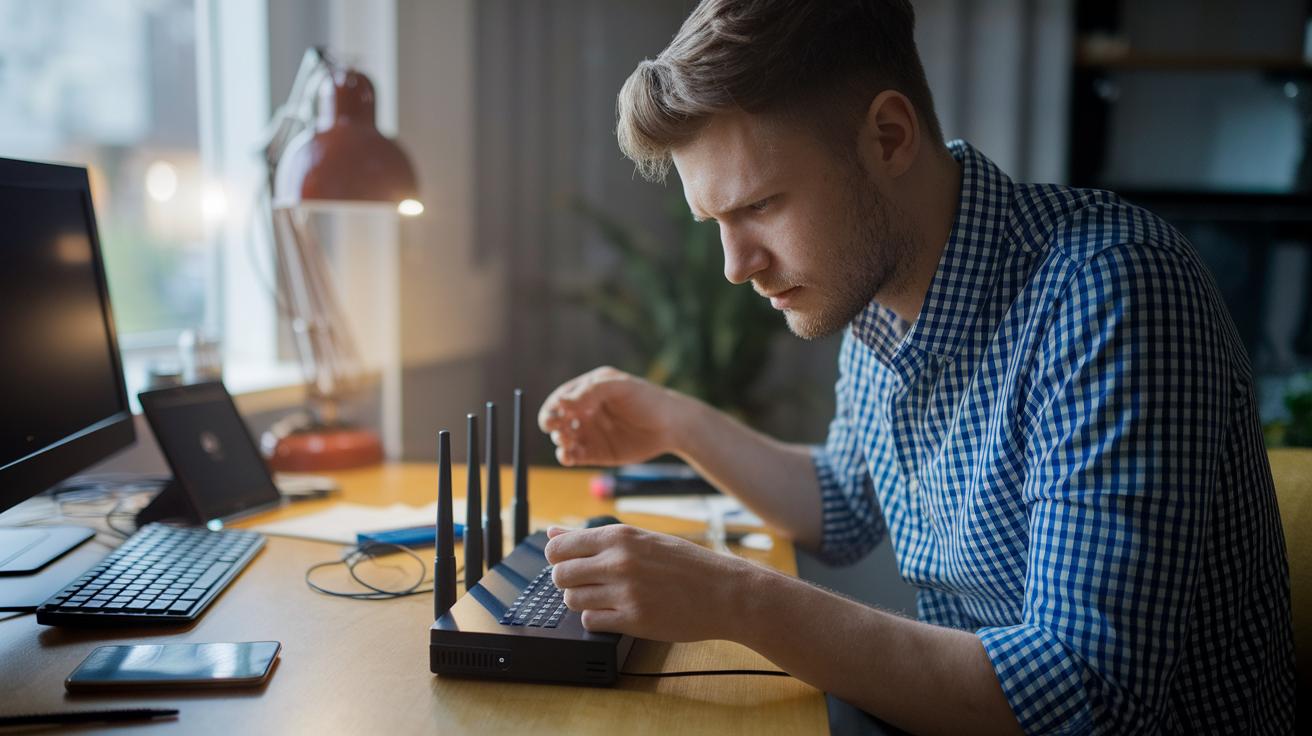
Setting up a VPN on your router is a clever way to shield all your devices, even those like smart gadgets or guest networks that can’t run their own VPN app. With a router-based VPN, every connected device gets its traffic encrypted, so your whole network stays private.
Before you get started, check your router’s manual to see if it supports VPN firmware or has a built-in VPN client. Some routers, especially models from Asus, Netgear, or Linksys, might need a fixed IP address for smooth VPN connections. If your manual mentions OpenVPN support, you’re in good shape to use most VPN services.
Next, log into your router’s admin panel and update the firmware if you need to. Either install the VPN firmware or use the built-in client, then type in your VPN provider’s login details. Choose a nearby server to keep your speeds up, and save your settings. Think of it like upgrading your home’s security system, every device gets the benefit of encrypted traffic.
It’s a smart idea to turn off any VPN apps on your individual devices if your router is already handling the VPN duties. This prevents extra encryption that might slow things down and ensures smooth performance. Just keep in mind that if your router isn’t very powerful, the extra work of advanced encryption might slow it down a bit.
By choosing the right server and following these easy steps, you create a secure, efficient tunnel that protects all your home traffic in no time.
Applying VPN Security Best Practices and Troubleshooting Tips
Getting the most out of your VPN is easier than you might think. Start by protecting your home network with a few simple steps. Use WPA3 Wi-Fi and keep your router’s firmware and VPN apps up to date. Turn on the kill switch, enable split tunneling, and add DNS-leak protection so your real IP address stays hidden. Stick to one VPN method at a time, either on your router or your device, to avoid conflicts. It also helps to save your router’s admin page in your bookmarks for quick access, and remember that free VPNs might slow things down or limit how many devices you can use.
If your connection feels sluggish, it might be because you’re connected to a server far from your location. Trying a server that’s closer can make a big difference. Outdated VPN apps can cause connection hiccups, so be sure to update them often. In cases where a static IP setup is used, misconfigurations might occur, check your router’s guide to fix those. Sometimes, mobile apps like Surfshark might ask for extra verifications, like captchas; a quick server switch or app restart usually clears that up. And if you hit a limit on the number of devices allowed, consider cutting back on simultaneous connections or picking a plan with more flexibility.
Regularly run DNS-leak tests and speed checks to stay on top of your connection’s health. If issues keep coming up, don’t hesitate to contact customer support or even explore a different provider to boost your overall network security.
Final Words
In the action, we broke down setting up VPNs on various devices, from installing apps on Windows, macOS, iOS, and Android to configuring router-based protection. We also covered choosing a trusted VPN provider and solid best practices for testing your connection.
This guide gives a clear start on how to configure VPN on multiple devices for home security. Every setup step helps boost your privacy and keeps your online world secure. Enjoy the journey toward a safer digital home!
FAQ
How do I configure a VPN on multiple devices for home security?
The process of configuring a VPN on multiple devices for home security starts by downloading and installing the app on each device, signing in, choosing a server, and enabling features like a kill switch and DNS-leak protection.
Can a VPN cover multiple devices at once?
The VPN covers only the device it’s installed on unless it’s set up on a router. Installing the VPN on every device ensures comprehensive protection for your home network.
What is the best VPN for multiple devices?
The best VPN for multiple devices combines strong encryption, fast speeds, and platform versatility. Providers like NordVPN deliver secure apps across devices and support several simultaneous connections under one subscription.
How do I set up a VPN on my home router?
The setup of a VPN on your home router involves checking compatibility, installing firmware or using built-in client support, entering your VPN credentials, selecting a server, and applying settings to secure all connected devices.
How can I use NordVPN on multiple devices?
The method for using NordVPN on multiple devices involves downloading its app on each device, signing in, and enabling protection features such as a kill switch, ensuring your home network stays secure.
Are there free VPN options for multiple devices?
The availability of free VPNs for multiple devices means you have choices, though free options often limit speed, server access, and security features compared to paid services with more robust protection.