

Ever wonder if one password is enough to keep your account safe? Two-factor authentication adds an extra lock to your digital door. It uses a simple, special code that only you know. In this guide, you'll learn how to set it up with a few easy steps. We break down the process in plain language so anyone can boost their online security without any fuss. Soon, you'll add another shield to your digital world, keeping unwanted visitors out.
Setting Up Two-Factor Authentication: A Step-by-Step Guide
Once you’ve entered your username and password, a six-digit code steps in like a trusted friend, adding another layer of security. This extra code makes sure that even if someone figures out your password, they’ll still need that temporary number to get in. Fun fact: before she became the famous scientist Marie Curie, she once carried test tubes of radioactive material in her pockets, completely unaware of the dangers ahead.
Follow these simple steps to set up two-factor authentication:
- Log in using your username and password.
- Choose your favorite way to verify your identity. Maybe you prefer getting a text message, or perhaps an authenticator app like Google Authenticator sounds better. If you want, you can even use a physical security key.
- Soon enough, you’ll receive a six-digit code. With SMS, it comes as a text; with an app, the code pops up on your screen; and if you have a hardware key, it sends the code through a secure channel.
- Type this code into the space provided. The system quickly checks to make sure it’s correct and still valid.
For example, if you’re using an authenticator app, you might see a new code appear every 30 seconds. This keeps your account extra safe, even if someone has your password. On the other hand, while SMS is super convenient, it might be a little slow sometimes if your phone network isn’t at its best.
By taking these steps, you’re adding an extra shield to your account. This way, only you can access it, making it much tougher for any unwanted visitors to get through.
Understanding Two-Factor Authentication Methods and Security Benefits
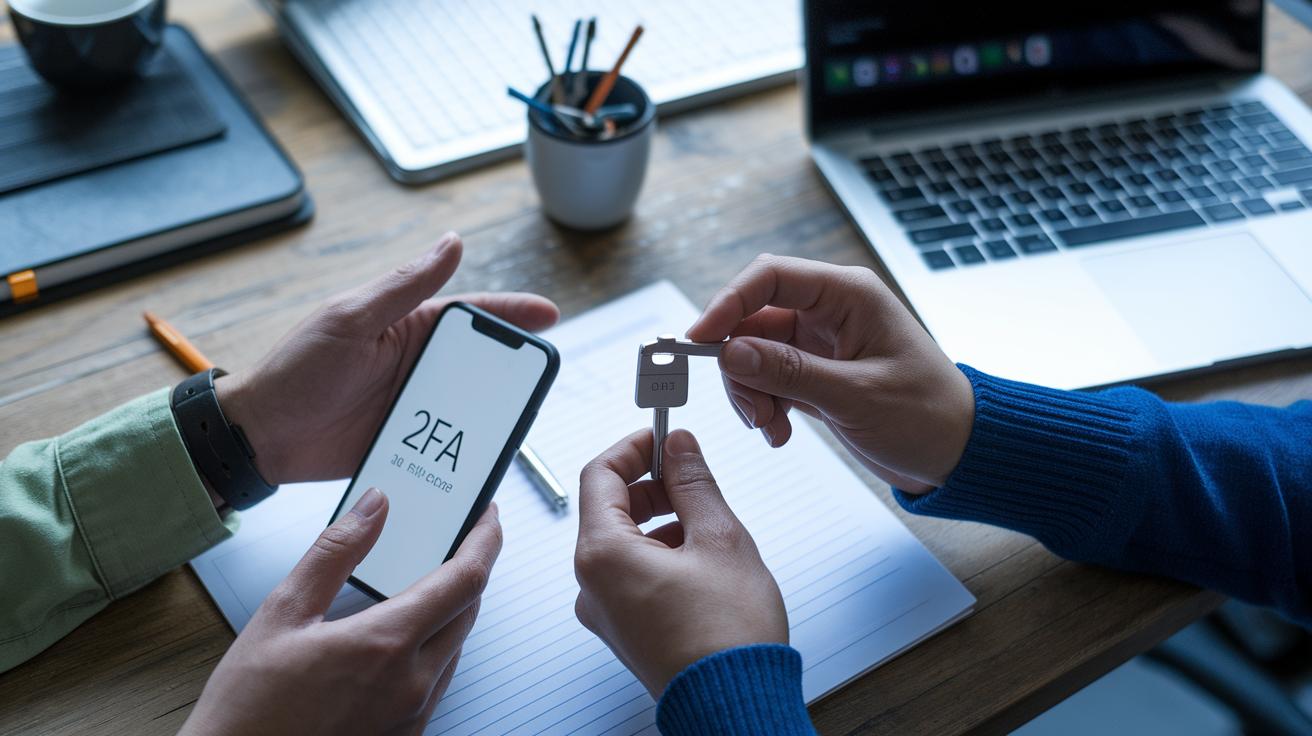
Two-factor authentication, or 2FA, adds an extra step before you can access your account. This extra check makes it much harder for anyone else to break in. Think of it like a double-lock on your digital door. It uses five simple ideas to make sure it's really you: something you know (a password), something you have (your phone or a security token), something you are (like your fingerprint or face), somewhere you are (verified via location data), and even when you log in (using time-based codes).
Let’s look at some common ways to set up 2FA:
- SMS Codes: These are very popular because they’re easy to use. A six-digit code is sent straight to your phone. But keep in mind, SMS might not be the strongest guard against tricky scams like SIM swaps or network glitches.
- Authenticator Apps: These apps generate a new code every 30 seconds so you don’t have to worry about relying on your carrier. They’re known for being reliable and extra secure.
- Hardware Keys: Imagine a tiny key card that boosts your protection even more. These keys use something called public-key cryptography, a fancy way of saying they keep secrets super safe, making them ideal for accounts that need extra care.
Each method has its own mix of benefits and little drawbacks. Sure, SMS is super convenient, but you might get more protection with authenticator apps or hardware keys that keep common cyberattacks at bay.
Have you ever thought about this? Even if someone steals your password, a one-time code can make all the difference between keeping your data safe or letting it slip away.
For more ideas and tips on staying secure, check out Multi-Factor Authentication Best Practices.
Setting Up Two-Factor Authentication on Popular Platforms
Google/Gmail Two-Factor Setup
- Open your Google account and go to Settings, then find Security, and click on 2-Step Verification.
- Hit "Get Started" to begin.
- Type in your phone number and wait for a text message with your confirmation code.
- Enter the code you received, then use Google Authenticator by scanning the provided QR code.
- Save your backup codes and choose your trusted devices.
<<>>
This setup links your phone with the app, so even if someone tries to fake your number, your account stays safer.
Microsoft Account Two-Factor Setup
- Go to your account’s security settings and choose the two-factor authentication option.
- Open the Microsoft Authenticator app on your phone and scan the on-screen QR code.
- Enter your phone number to get an extra SMS code.
- Confirm the code you get and finish by adding other backup options like email confirmation.
<<>>
By following these steps, you combine a phone method with an app, adding extra security every time you log in.
Apple ID Two-Factor Setup
- Sign in on your device and open System Preferences (or iOS Settings) under your Apple ID.
- Tap on Password & Security, then select Turn On Two-Factor Authentication.
- Follow the instructions by entering a trusted phone number to receive codes.
- Approve the login on one of your other devices to confirm it’s really you.
<<>>
This easy process lets your Apple devices work together, keeping your account strictly secure.
Facebook Two-Factor Setup
- Log into Facebook and head to Security & Login. Choose the two-factor authentication option.
- Pick your favorite method, SMS, an authenticator app, or even a physical security key.
- Enter the verification code sent to you to confirm your choice.
- Once confirmed, Facebook adds this protection, so every login goes through an extra check.
<<>>
This method gives you a clear, secure sign-in process that boosts your digital safety while making setup a breeze.
Troubleshooting Common Two-Factor Authentication Issues

Two-factor authentication is a smart way to boost your account's security. But sometimes, things don't go as planned. Imagine being locked out because your phone is missing or waiting for a code that never arrives. These issues could pop up because of expired SMS codes, time errors in authenticator apps, or even network problems when you're overseas. In these cases, having backup options is a real lifesaver. You can set up multiple methods and store backup codes offline, so you're ready for any unexpected hiccup.
- Lost your primary device? Use the backup codes you prepared or try a secondary phone number.
- If an SMS code isn't arriving, check your cell signal and maybe switch to an authenticator app.
- When your app shows the wrong time, head into the settings and click "Sync now" to reset it.
- Traveling internationally? Turn on roaming or use an offline hardware key as a backup.
- And remember to remove outdated methods while keeping at least two active backup options for extra safety.
Following these steps can improve your overall security and help you avoid lockouts when you need to access your account the most.
Enhancing Account Security with Two-Factor Authentication Best Practices
To boost your account security, set up at least two ways to verify your identity. Start by using an authenticator app, a handy tool that produces a fresh code every 30 seconds, much like a diary that updates itself securely, instead of relying on SMS. Pairing this app with a hardware security key, which is like a small USB key, adds an extra layer of safety so that if one method fails, the other still keeps your account protected.
Keep your backup codes in a secure offline spot, just as you would hide away a spare key to your house. Also, remember to update your authentication apps regularly and mix up your backup methods to lower any risks.
- Set up two different ways to verify your identity
- Choose an authenticator app over SMS for better security
- Add a hardware security key for your most important accounts
- Store backup codes offline and update them often
Two-Factor Authentication vs Multi-Factor Authentication: Understanding the Differences
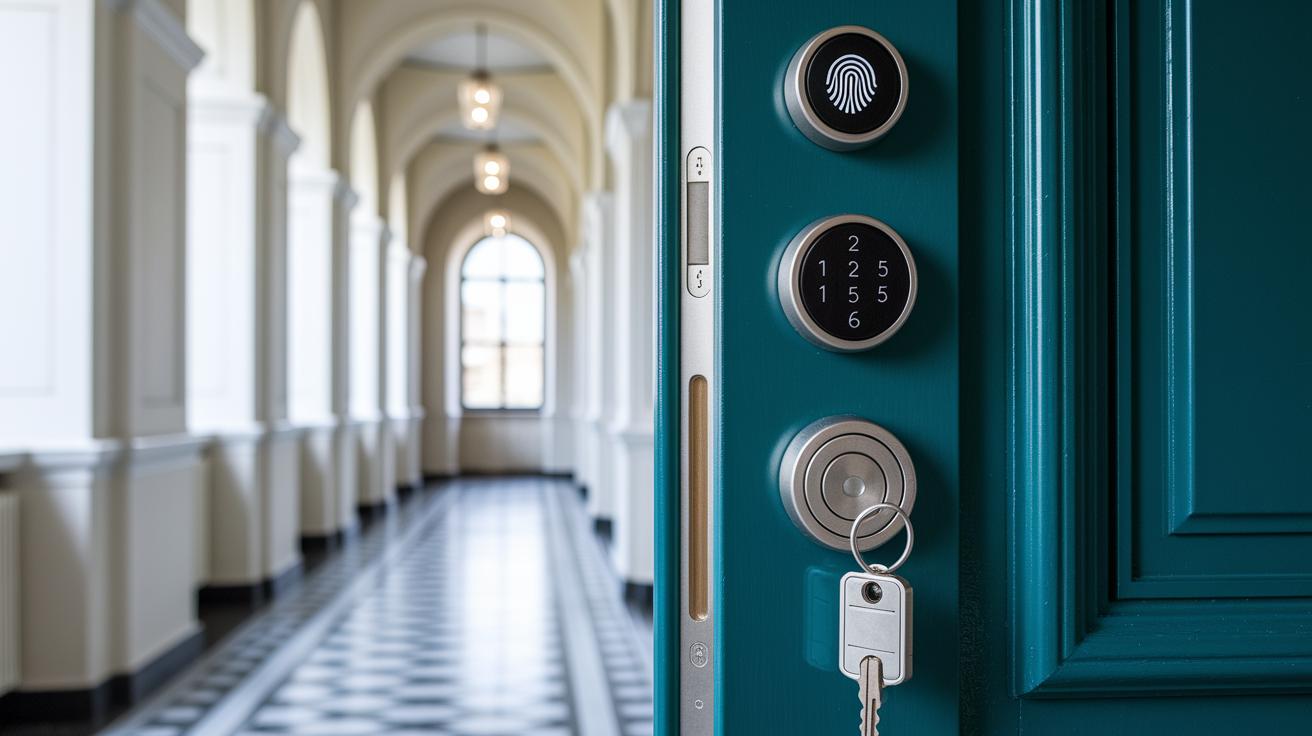
Two-factor authentication, or 2FA, uses a pair of methods to verify who you are. Think of it like a door that needs both a key and a secret code to open. It’s simple enough for everyday use while still adding a boost of security.
Multi-factor authentication, known as MFA, ramps things up by requiring three or more proofs of identity. Besides something you know and something you have, it might ask for a fingerprint, a scan of your face, your location, or even the time you log in. This extra step can offer stronger protection, even if it feels a bit more complex.
The choice between 2FA and MFA really comes down to your needs. If you’re just securing everyday accounts, 2FA might be just the ticket. But if you deal with very sensitive data, the extra layers of MFA could be a game changer.
Final Words
In the action, we walked through a clear guide for setting up two-factor authentication to strengthen your online security. The blog post took you from understanding different methods and hands-on setup examples on popular platforms to troubleshooting common issues and sharing best practices. This two-factor authentication tutorial showed how simple and practical protecting your digital presence can be. Stay safe and keep exploring new ways to protect your personal information while enjoying improved account security.
FAQ
What is two-factor authentication?
Two-factor authentication is a security measure that adds a second verification step after your password. It requires a code from a text message, app, or hardware key, making your account tougher for intruders to access.
How do I set up two-factor authentication?
Setting up two-factor authentication involves linking your account to a trusted phone number or an authenticator app. You then enter a code, usually a six-digit number, to complete your login securely.
What is the best 2FA method?
The best 2FA method often depends on your needs, but many choose authenticator apps like Google Authenticator. These apps don’t rely on cell service and provide time-based codes for a secure extra layer.
How does two-factor authentication work on platforms like Google, Facebook, and Microsoft?
Two-factor authentication on these platforms means you register a secondary code delivery method. During login, after entering your password, you use a code received via SMS, app, or security key, adding extra protection.
What is Google Authenticator used for in two-factor authentication?
Google Authenticator is an app that creates time-sensitive codes for login verification. It works by generating a six-digit code that you enter after your password, offering a secure way to protect your account.
What is the main disadvantage of two-factor authentication?
The main disadvantage of two-factor authentication is its reliance on a second device or network. If that device is lost or if network issues occur, it can complicate access to your account.
How can beginners easily set up two-factor authentication?
Beginners can set up two-factor authentication by following simple, step-by-step guides that most platforms offer. These guides show how to link your phone or app and verify your identity with a secure code.
What options are available besides Google Authenticator?
Other available options include Microsoft Authenticator, Duo Mobile, and FreeOTP. Each of these apps generates secure codes for your logins, letting you choose the option that best fits your device and comfort level.