
Ever wonder if your online account is really safe? Even a strong password might not be enough to stop someone determined to break in. Two-factor authentication adds a second wall of defense, making it much harder for bad actors to get in, even if your password is discovered.
Imagine receiving a quick text with a code or scanning a simple QR code with an app. Each of these steps builds a strong, extra layer of security around your account. Our guide walks you through these easy steps.
Take just a few minutes to set up two-factor authentication, and enjoy the peace of mind that comes with knowing your online world is a bit more secure.
Step-by-Step Two-Factor Authentication Setup for Account Security
Setting up a second way to sign in helps keep your account safe. Even if someone guesses your password, this extra step stops them from getting in.
First, sign in to your account and head over to your privacy or security settings. Look for a choice labeled two-step verification or 2FA.
Next, pick how you want to verify your identity. You can choose to receive a text message, use an authenticator app, or even a hardware token.
If you choose an app, scan the QR code it shows. If you picked text messages, just enter your phone number. Then, type in the one-time code you receive to confirm everything is set up right.
Write down or print your backup codes and keep them somewhere safe offline. These codes will help you get back in if you ever lose access to your primary device.
To be extra sure, sign out and then sign back in. Check if there are any extra recovery options you can update.
Using 2FA adds a strong extra layer of security. Even if your password is stolen, the attacker would still need your second factor to break in.
How Two-Factor Authentication Works for Account Security

Two-factor authentication means you need to prove your identity using two different methods. One is usually something you know, like your password, and the other is something you have, such as a code from a mobile app or a hardware token like a YubiKey. Just using two pieces of info from the same category, for example, a password and a PIN, won't cut it. Instead, the system demands that you mix different types of proof to keep unwanted visitors out.
This method stands apart from other multi-factor setups by choosing clearly different types of evidence. While broader approaches might let you combine several elements, two-factor authentication is all about pairing one thing you know with one thing you have or a part of who you are. Open standards like FIDO U2F back up methods using hardware tokens and push notifications that let you quickly approve or block a login. Remember that even a strong system is only as safe as its weakest link; for example, a breach in 2011 showed how even compromised hardware tokens could be exploited.
By merging two distinct factors, your account becomes much harder to break into. Even if someone steals your password, they still won't have your physical token or biometric verification, making a successful attack much tougher. New features like push notifications add a friendly and secure layer by asking, "Is this really you?" And in really secure settings, experts even recommend adding a biometric check to strengthen safety even more.
Platform-Specific Two-Factor Authentication Setup for Account Security
Every platform handles two-factor authentication a bit differently. Still, they all ask you to open your security settings, choose a way to get a code, and then enter that one-time code to lock down your account.
Google Two-Step Verification Setup
Head over to myaccount.google.com/security and find the 2-Step Verification option. You can choose to get your code via SMS or an authenticator app. Follow the instructions, either scan the QR code shown or add your phone number, then type in your one-time code. Finally, save your backup codes somewhere safe. This step-by-step setup makes your account secure and keeps that trusted login screen ready when you need it.
Facebook Two-Factor Authentication Setup
Log into Facebook and go to Settings & Privacy, then click on Security & Login. In the two-factor section, select Use Two-Factor Authentication. Pick whether you’d like to receive your code by SMS or through an authenticator app. Enter the code that shows up on your device and follow the prompts. With this in place, every time you sign in, you can feel more confident in your account’s security.
Instagram Two-Factor Verification Setup
On Instagram, navigate to Settings, then tap on Security, and choose Two-Factor Authentication. Decide whether you want an Authentication App or SMS to send you a confirmation code. Once you receive your code, enter it to verify your device. Be sure to note down your backup codes in a secure spot. This extra measure helps keep unwanted visitors out of your account.
Microsoft Account Two-Factor Authentication Setup
Sign in at account.microsoft.com/security and click on Additional Security Options. Turn on two-step verification by selecting either your phone or an authenticator app. After you receive a one-time code, enter it to verify your identity. If you need any more details, check out Microsoft account security at this link: https://heighline.com?p=416. This clear guide keeps your account protected and offers backup ways to regain access if needed.
Discord Two-Factor Authentication Setup
Open Discord and go to User Settings, then My Account, and find the Two-Factor Auth option. Use an authenticator app to scan the QR code that appears, and then enter the generated code to finish setup. Don’t forget to save your backup codes, this way, you’ll always have a secure method to get back into your account when needed.
Choosing Authentication Methods When Enabling Two-Factor Authentication for Account Security

When you add two-factor authentication, it’s smart to pick the method that is easy, reliable, and keeps your account safe. Every option has its own perks, so think about what matters most to you.
SMS codes are very simple and work on most phones. They are a quick way to get an extra layer of security, but they sometimes fall victim to SIM swapping tricks. On the other hand, authenticator apps create time-based one-time codes. These apps work even without an Internet connection and offer better security, though they need a bit of setup at the start.
For the strongest protection, security keys use a type of encryption that keeps your account locked up tight. They are top-notch when it comes to security but can cost more and might feel less convenient if you use them every day.
| Method | Pros | Cons |
|---|---|---|
| SMS | Easy to set up; works on most devices | Risk of SIM swap attacks; not as secure |
| Authenticator App | Works offline; offers solid security | Takes a little effort to install and set up |
| Security Key | Uses strong encryption for top protection | More expensive and less widely supported |
You may even use more than one of these methods at the same time if you need extra peace of mind.
Managing Backup Codes and Recovery Options for Secure Account Access with Two-Factor Authentication
Once you set up two-factor authentication, you usually get about 8 to 10 one-time backup codes. Save these codes by downloading, printing, or writing them down. Keep them safely offline, away from any online risks. This simple step acts like a safety net in case you lose your primary device. It makes sure you always have a way back into your account, even if your authenticator app or hardware token is out of reach.
You can also add extra recovery options. For example, try registering an alternate phone number, setting up a secondary authenticator app on another device, or even linking a hardware key. Make sure to test each method every once in a while to ensure they work as they should. Taking these extra steps not only boosts your account safety but also ensures you can get back in when you need it most.
Troubleshooting and Best Practices for Enabling Two-Factor Authentication for Account Security
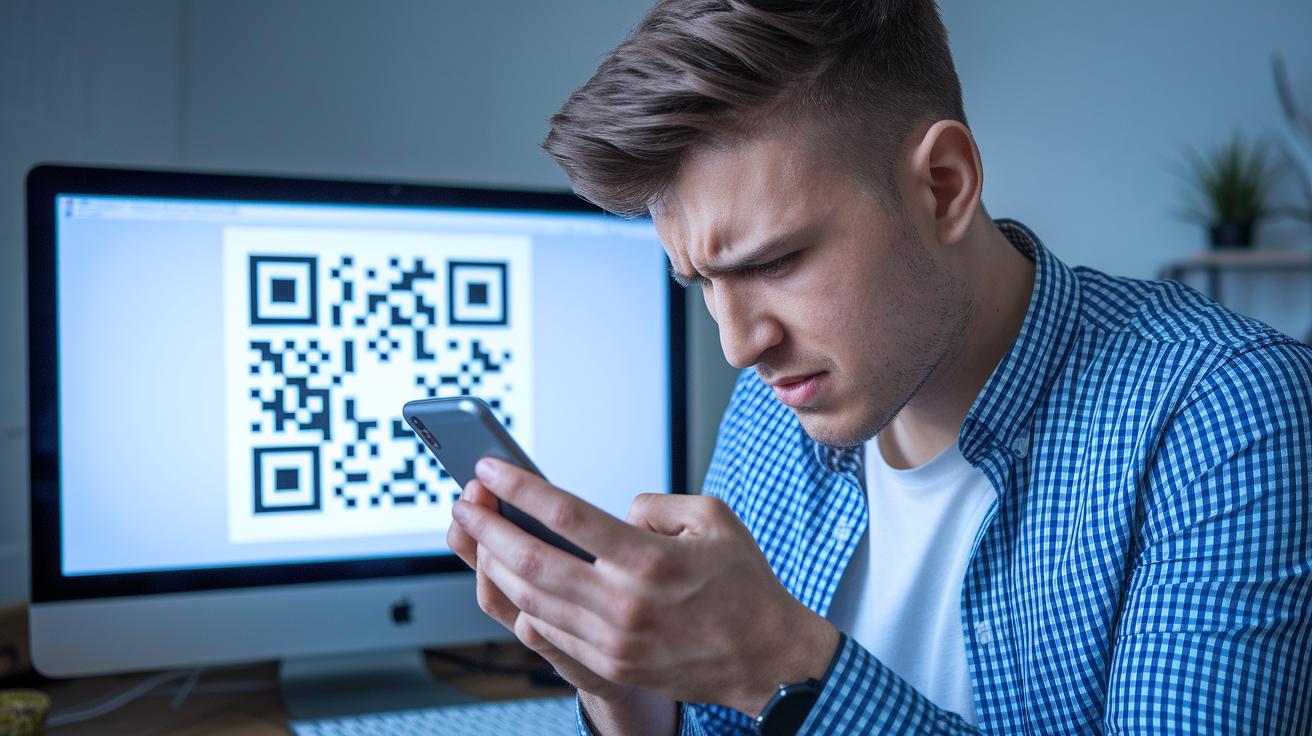
Troubleshooting is key to keeping your two-factor setup strong. Little technical hiccups can get in the way and weaken your protection. Fixing these issues early helps keep your account safe from unwanted visitors.
Sometimes, you might face problems like QR code scan issues or mismatches in time settings in your apps used for TOTP (Time-Based One-Time Password), and that can be really frustrating during setup. You might also notice delays in receiving SMS codes or even lose the device that generates them. In these moments, tweaking your device’s clock or going through the enrollment process on your authenticator can clear things up. Keeping backup codes handy is always a smart move.
It also helps to regularly update your software, use hardware keys for important accounts, and check which devices have access. And don’t forget to make sure your recovery phone numbers are current. These steps work together to build a solid digital shield for your account.
Final Words
In the action, we broke down setting up 2FA with clear steps, from accessing account settings to verifying your device and saving backup codes. We examined how two-factor authentication works, reviewed various methods, and shared platform-specific tips for Google, Facebook, and more.
We explored troubleshooting tips and best practices to keep your digital identity secure. Embrace these easy steps on how to enable two-factor authentication for account security, and feel confident managing your secure digital presence every day.
FAQ
How do I enable two-factor authentication on my iPhone or Apple account?
Enabling two-factor authentication on your iPhone starts in Settings by tapping your Apple ID, then Password & Security to toggle on extra verification and secure your account.
How do I enable two-factor authentication on my Android device?
Activating two-factor authentication on Android involves signing in to your account, navigating to security settings, and selecting a preferred method like SMS or an authenticator app for added protection.
How do I enable two-factor authentication for my Google account, including Gmail and account recovery?
Enabling two-factor authentication for Google requires signing into myaccount.google.com/security, selecting 2-Step Verification, and picking a method such as SMS or an authenticator app with backup recovery options.
How do I enable two-factor authentication on my Facebook account?
Activating two-factor authentication on Facebook involves accessing Settings & Privacy > Security & Login, choosing the two-factor option, and confirming your choice with either SMS codes or an authentication app.
How do I enable two-factor authentication on my Microsoft account?
Enabling two-factor authentication on Microsoft means visiting account.microsoft.com/security, selecting additional security options, and following the guided steps to verify your phone number or use an authenticator app.
How can I tell if two-factor authentication is enabled on my account?
Knowing if two-factor authentication is enabled is simple—check your account’s security settings, where you will see the active status of your additional verification method clearly indicated.
What does “2FA live” mean?
Experiencing 2FA live means you actively receive a code or push notification during login, confirming in real time that the extra layer of security is functioning and protecting your account.