
Have you ever wondered if your online secrets are really safe? Imagine your privacy settings as the lock on your front door, only those you trust get a peek inside.
Every change you make is like adding an extra layer of protection. Did you know that over 422 million records have been exposed in past breaches? Keeping your data safe is not just smart; it is a must.
This guide will walk you through some simple tweaks that build a strong shield against cyber threats. Are you ready to take control and feel safer online? Let's start this journey together.
Privacy Settings Walkthrough: Step-by-Step Setup Guide
Changing your privacy options is crucial for keeping your information safe. When you adjust your settings, you get to decide who sees your personal details and what stays hidden. Every choice you make helps block unwanted access. In today's online world, understanding your settings gives you the power to control your own digital space.
Look at these numbers: over 1,800 breaches have leaked more than 422 million records in the U.S. This shows just how much data can fall into the wrong hands if your settings aren’t tight. Taking a few minutes to tweak your options can really lower your risk. Every little switch you flip builds a stronger defense against cyber threats.
- Location tracking
- Ad personalization
- Activity and data controls
- Two-factor authentication
- Security checkup
Let’s start your privacy walkthrough. First, look for the section in your account or device labeled Privacy or Security. Often, you'll find it under menus like "Privacy & Security" or "Account Settings". For example, on your mobile, tap on Settings and then choose Privacy to adjust things like location tracking and ad personalization. On a desktop, check your account control panel for similar options. Taking a moment to review these settings helps protect your data and keeps you in control of what gets shared online.
Privacy Settings Walkthrough for Social Media Platforms
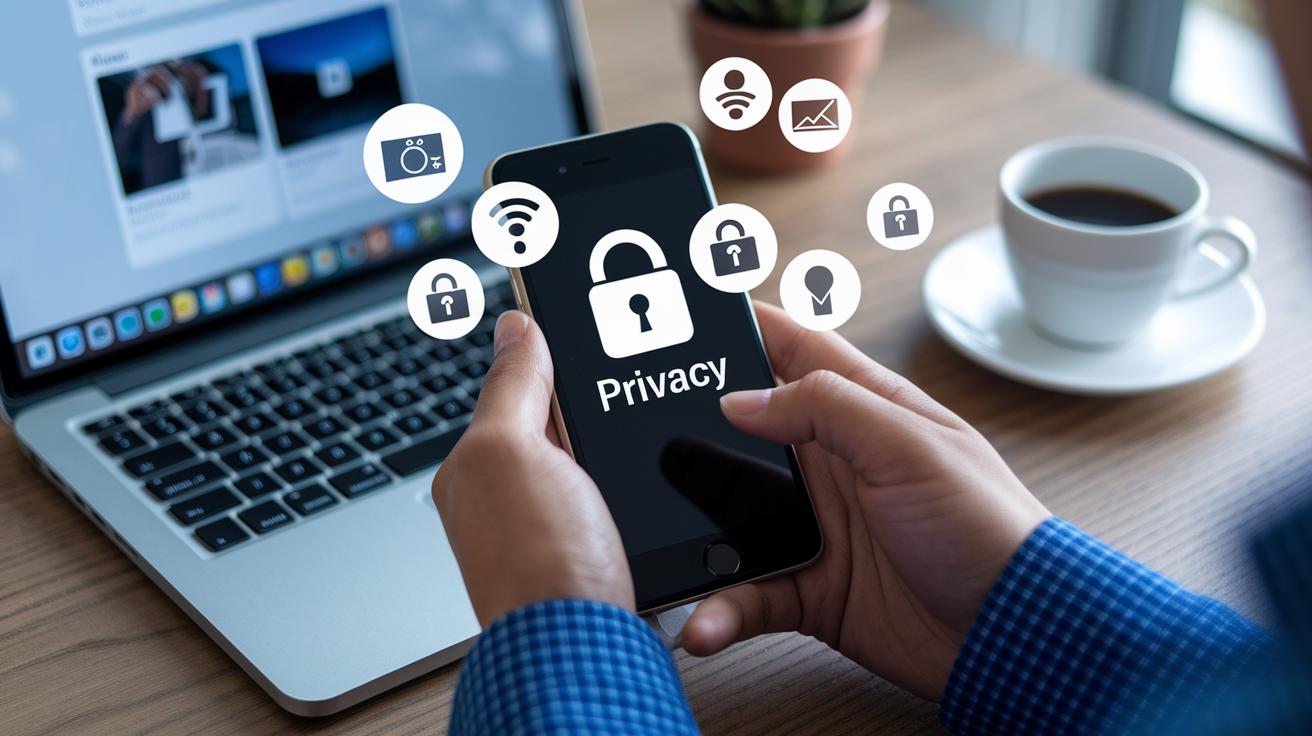
Social media can be a bit tricky since each platform shows your personal details in its own way. When you update your privacy settings, you decide who sees your posts, stories, and other info. This simple action helps safeguard your digital life and makes you feel more in control.
Facebook Privacy Settings
On Facebook, start by clicking the arrow in the top-right corner. You can then set the audience for each post so that only the friends you trust see your updates. Tweak these settings one by one until you find the perfect balance for your comfort.
Instagram Privacy Settings
For Instagram, open your app and switch your profile to private. A quick toggle like this locks your posts and stories so that only approved followers have access. It’s a fast way to add a strong layer of protection to your photos and captions.
Twitter (X) Privacy Settings
On Twitter (or X), tap your profile icon in the top-right corner. Look for the option labeled Protect Tweets. This change means only followers you approve can view your tweets, keeping your updates safe from strangers.
LinkedIn Privacy Settings
For LinkedIn, click your avatar in the top-left corner. This brings up settings that let you decide who sees your activity and profile details. Adjust these options carefully to keep your professional and personal lives secure.
Snapchat Privacy Settings
With Snapchat, open the app and check out its privacy options. You can control who contacts you and who views your stories. Adjusting these settings makes sure your snaps remain personal and only reach the eyes you trust.
| Platform | Key Privacy Steps |
|---|---|
| Click the arrow; set who sees each post | |
| Toggle your profile to private in the app | |
| Twitter (X) | Tap your icon; enable tweet protection |
| Click your avatar; adjust who sees your activity | |
| Snapchat | Open the app; set who can contact you and view stories |
Privacy Settings Walkthrough: Elevate Your Data Safety!
Your phone is like a little vault for your personal data. When you let apps get too many permissions, they can sneak a peek at your location, camera, and contacts. That means your private info might be used for ads or even sold without you knowing. Even your web browser can keep tabs on your activity if you’re not in private mode. Spending a few minutes to review these settings can make a big difference in keeping your data safe.
Here are some settings to check:
- Location Services
- App Permissions (camera, mic, contacts)
- Browser Private Mode (learn more here: https://heighline.com?p=1474)
- Background App Refresh
- Ad Tracking
Turning off settings you don’t need is like locking up your valuables. For example, if you go to Settings > Privacy & Security > Location Services, you can disable location data for apps that really don’t need it. This stops your real location from being used for personalized ads or shared in ways you haven’t approved.
Disabling background access for your camera, microphone, and contacts further cuts down on unseen data collection. And using private browsing keeps your online activities out of easy reach from trackers. It’s a smart idea to check these settings often so you always feel in control of your personal information.
Privacy Settings Walkthrough in Operating Systems

Your operating system settings are like a strong lock on your digital door. They control who sees your personal data and what apps get to use it. Tuning these settings helps keep details like your location, camera use, and activity private until you decide otherwise.
Windows Privacy Settings
- Start by clicking the Start menu on your computer.
- Go to Settings, then choose Privacy.
- In the General section, take a look at the privacy options. Turn off any settings that let apps share data you’d rather keep private.
- Next, click on Location. Decide which apps can see your location and turn it off for apps that don’t really need it.
- Then, check out Camera and Microphone. Switch off these features for apps that don’t truly require them.
- Scroll to Diagnostics & Feedback. Here, you can limit what data goes to Microsoft by tweaking or disabling diagnostic info.
- Lastly, look at Activity History. Choose if you want your device to store or sync your activity with your Microsoft account.
macOS Privacy Settings
- Click the Apple icon and open System Preferences.
- Go to Security & Privacy and then select the Privacy tab.
- In Location Services, decide which apps can track where you are by checking or unchecking the options.
- For Contacts, Calendars, Camera, and Microphone, pick which apps can access these. Turn off access for any you don’t need.
- Also, look for options like Photos and Bluetooth if they are available, and adjust them to your comfort.
You might also add extra layers of protection. For example, turn on the Windows Defender Firewall on Windows or enable FileVault on macOS to protect your disk with encryption. This way, you help keep your files safe even if someone gets physical access to your device.
Privacy Settings Walkthrough: Troubleshooting & Best Practices
Sometimes, when your operating system or app updates, your privacy choices might change without any warning. After an update, some settings can go back to the default. This means your personal information might be at risk if you don't check things over. Taking a moment to review your settings after an update puts you back in charge and keeps your data safer.
Here are some easy steps to stay secure:
- Install all OS or app updates as soon as they're available.
- Do a privacy check every few months.
- Use a password manager to keep your passwords safe.
- Enable two-factor authentication, which adds a second step to verify your identity. (Think of it like a double lock on your door, if you need more details, check out the guide on secure access.)
- Choose messaging apps that use end-to-end encryption, so only you and the person you're talking to can read your messages.
- Turn off ad personalization to stop services from using your data to target ads.
Each of these tips works together to create a strong safety net for your digital life. Adjusting your settings regularly helps you stay ahead of any potential risks. Keeping your software up-to-date and using strong, unique passwords are simple ways to protect yourself online. Plus, secure messaging and turning off unwanted ad tracking add extra layers of defense. By keeping an eye on privacy policy changes, you can make sure your settings always work for you.
Privacy Settings Walkthrough: Advanced Hidden Mode & Incognito Tips
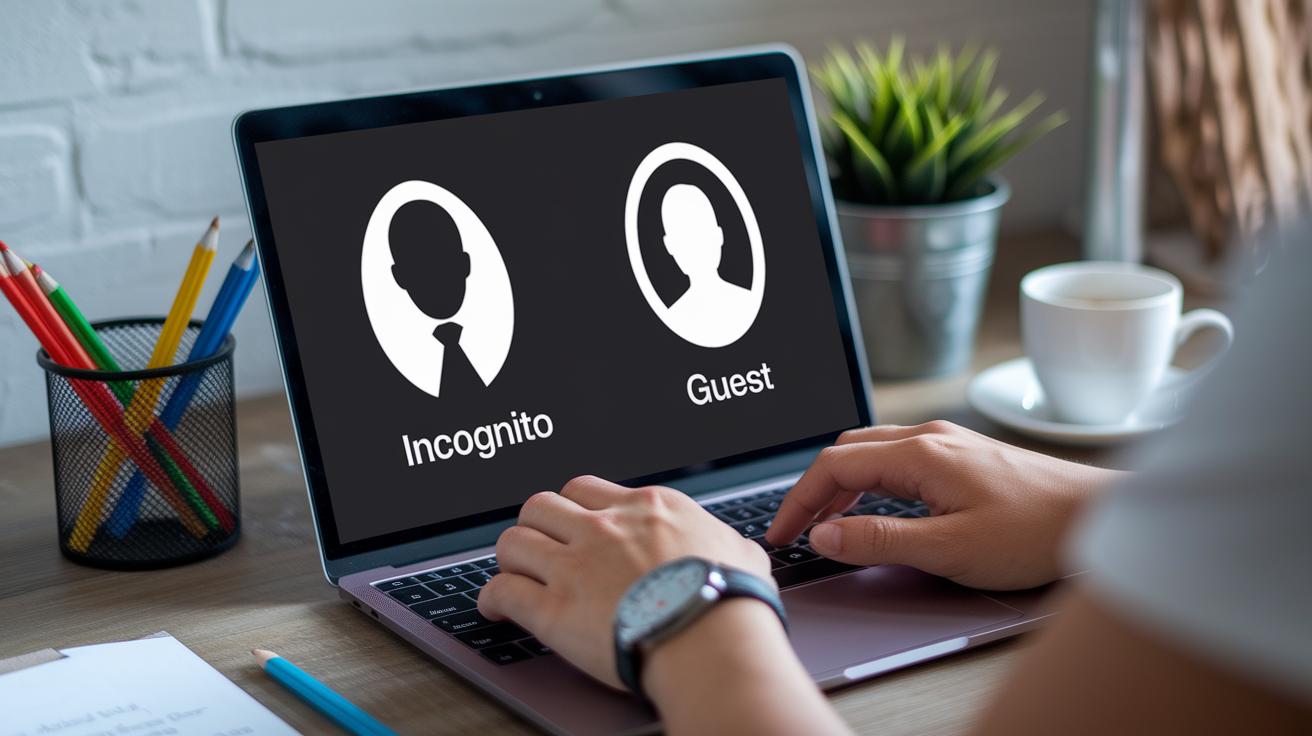
Incognito mode and Guest sessions might seem similar, but they work in different ways. When you're in incognito mode, your browsing history, cookies, and searches stay hidden, keeping your regular profile private. But with Guest mode, you start a temporary session that keeps someone else's data separate from yours. This means you can pick the option that fits best whether you want a fresh start without traces or need to share a device safely.
- Set up a private DNS or a VPN you trust.
- Turn off app telemetry and crash reports.
- Try the hidden chat features in your messaging apps.
- Check and remove browser extensions you don't need.
After you change these settings, test them in a controlled environment. Testing shows if your privacy features work correctly without messing up normal functions. This step builds trust in your digital protection and lets you fine-tune things to match your security needs.
Final Words
In the action, this article broke down secure privacy setups across social platforms, mobile devices, and operating systems. We covered how to adjust key toggles like location tracking and two-factor authentication, offered troubleshooting tips, and shared advanced hidden mode techniques. This privacy settings walkthrough gives you practical steps to maintain a secure digital presence. Regular updates and clear checks on your privacy settings make managing your digital life more straightforward and effective. Stay positive and keep refining your secure account management strategies.
FAQ
What do my privacy and security settings mean?
Your privacy and security settings allow you to control who sees your data on your devices and online. Adjusting these settings helps protect your information from unwanted sharing.
How are Google privacy settings managed across devices?
Google privacy settings help you control data sharing and app permissions on both your account and phone. They let you manage location tracking, ad personalization, and other key options for better protection.
Should my privacy settings be on or off?
Having privacy settings turned on gives you the power to decide what data is shared. Keeping them enabled helps safeguard your personal details from being misused.
What iPhone privacy settings should I turn off?
On an iPhone, you can disable non-essential settings like unnecessary location services and background app access. This minimizes data sharing while keeping essential functions active.
How do you access your privacy settings?
To visit your privacy settings, open your device’s Settings app and tap the Privacy or Security section. This menu lets you adjust permissions for location, camera, microphone, and more.
What do privacy settings allow you to do?
Privacy settings let you decide which apps and services can access your personal information. They empower you with control over data sharing, increasing both digital safety and personal convenience.